
When launching a maker project or a student prototype, the first instinct is often to look for software to install. However, with a restricted university PC, an aging laptop, and three teammates on different systems, a lot of time is wasted even before starting.
Online tools that run in the browser change the game: no installation, access from any workstation, real-time collaboration. The challenge is to find out which ones truly deliver on their promises once we move beyond the quick testing phase.
From diagram to shareable prototype without leaving the browser
Let’s take a concrete example: a group of four students needs to design a case for an IoT sensor. They need a principle diagram, an exportable 3D model for printing, and shared documentation. All of this before the presentation on Friday.
For the quick diagram, Excalidraw works without account creation. You open a link, draw, and share the URL. It’s an open-source collaborative whiteboard, self-hostable if your fablab or school wants to maintain control over the data. The “hand-drawn” style is not a gimmick: it fits perfectly for project framing, functional diagrams, and workshop sketches that can be iterated quickly.
On the CAD side, Onshape offers a free plan with integrated PDM (part version management), directly in the browser. Multiple users can work on the same assembly, which avoids the back-and-forth of STEP files via email. For a group of students or a makers’ association, this is a clear advantage over traditional desktop software where collaboration involves manual exports.
You can also discover Mega REF for students looking to map out all these resources and identify those suitable for electronics, programming, or digital fabrication.
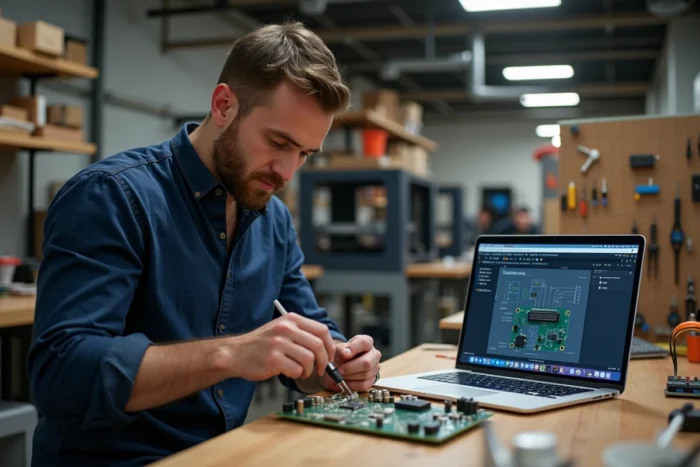
Open source project management: beyond to-do lists
Most articles recommend Trello or Notion for organizing a student project. They are good personal productivity tools. However, when managing a real technical project with milestones, deliverables, and multiple contributors, something more structured is needed.
OpenProject offers a free Community edition with no time limit. It is an open-source software that covers planning (Gantt charts), bug tracking, document management, and customizable workflows. For a robotics club, a final year project, or an associative fablab, it is a full-fledged project management tool, not just a simple kanban board.
The interface requires a longer adjustment period than Trello. Feedback varies on this point: some teams find the learning curve steep, while others appreciate the rigor it imposes on project documentation. If the group has never managed formal planning, starting with the “tasks” module before activating the Gantt charts helps to gradually build competence.
Licenses, quotas, and data ownership: what we forget to check
A free tool is not always free of constraints, and a free tool is not always without limitations. Before adopting a platform for a project that will last several months, three points deserve systematic verification.
- The license of the created files. On Onshape, the free plan requires that projects be public. In practice, anyone can view and copy your 3D models. For an educational project, this is not an issue. For a prototype intended for a competition or a student startup, it could be problematic.
- Storage and export quotas. Many freemium platforms limit the number of active projects, the size of files, or the available export formats. Checking these limits before starting avoids discovering the cap on the day you need to deliver.
- The portability of data. If the platform shuts down or changes its terms, can you retrieve your files in a standard format (STEP, SVG, Markdown) or are you locked into a proprietary format with no easy export?
This checklist applies to all online tools, not just CAD. A collaborative wiki, a diagram tool, or a documentation platform deserves the same scrutiny.

Assembling your toolchain without friction
The classic mistake is to stack platforms: one tool for diagrams, another for CAD, a third for tasks, a fourth for documentation, a fifth for messaging. After three weeks, no one knows where the latest version of the deliverable is.
Limiting the chain to three or four well-chosen tools reduces cognitive load and information loss. A realistic setup for a student maker project might look like this:
- Excalidraw for framing diagrams and quick collaborative sketches
- Onshape for shared 3D design and part versioning
- OpenProject (or a simple kanban if the project is short) for task and deadline tracking
- A Git repository with Markdown files for technical documentation, exportable and sustainable
What matters is that each link in the chain produces files in an open and retrievable format. Excalidraw exports in SVG and PNG. Onshape exports in STEP and STL. Markdown files can be read anywhere. You maintain control over the work produced, even if you switch tools later.
When the browser is no longer enough
For heavy simulations (finite elements, photorealistic rendering, firmware compilation), the browser reaches its limits. In these specific cases, locally installed software remains necessary. The pragmatic approach is to do all collaborative and iterative work online, then switch to a workstation equipped only for the steps that require raw computing power.
The choice of online tools for a student or maker project is not just a list of names. It’s about a coherent chain, exportable formats, and usage conditions read before the first click. A shareable prototype at the end of the semester is better than a collection of forgotten freemium accounts.